Your scenarios.
Bring existing teaching material, review the extracted details beside their source and approve the version you want to use.
The scenario. The session. The debrief.
Bring your clinical teaching into one workflow. Prepare the patient journey, guide a live session, then return to the moments that matter.
Session begins. The patient arrives breathless.
Try it: choose a state, then flag a moment. Interactive preview · illustrative data
Follow the educator’s path from reviewed scenario to live session and debrief, with fictional teaching data.
Captions, transcript and tutorialsYour scenario may begin in a Word document. Your session unfolds across people, devices and screens. Your debrief needs the story behind the numbers.
OpenHealthSim connects that work through a local runtime and replaceable plugins, so your room can be configured without rewriting the patient journey.
Follow the first-session guideThe source repository is currently private. Public licensing and distribution remain separate release steps.
Bring existing teaching material, review the extracted details beside their source and approve the version you want to use.
Choose roles, learner stations and output routes for each session. Keep manual charting and console delivery available when equipment is not connected.
Choose compatible cloud or local providers for the AI tasks you use. Review suggestions before they become part of an approved scenario.
Add a panel, device mapping or workflow through the plugin interfaces. Inspect its requirements and permissions before installation.
Explore the developer guideWindows with Chrome and Linux are the tested MVP scope. macOS and actual Safari / iPad checks remain open.
The runtime, database and application can live on your machine. Chosen cloud AI features need internet access. The hosted clinician demo lets you explore the workflow first.
Prepare a session or return to one already in progress. The console, learner record and debrief stay connected to the saved session.
Open the clinician demo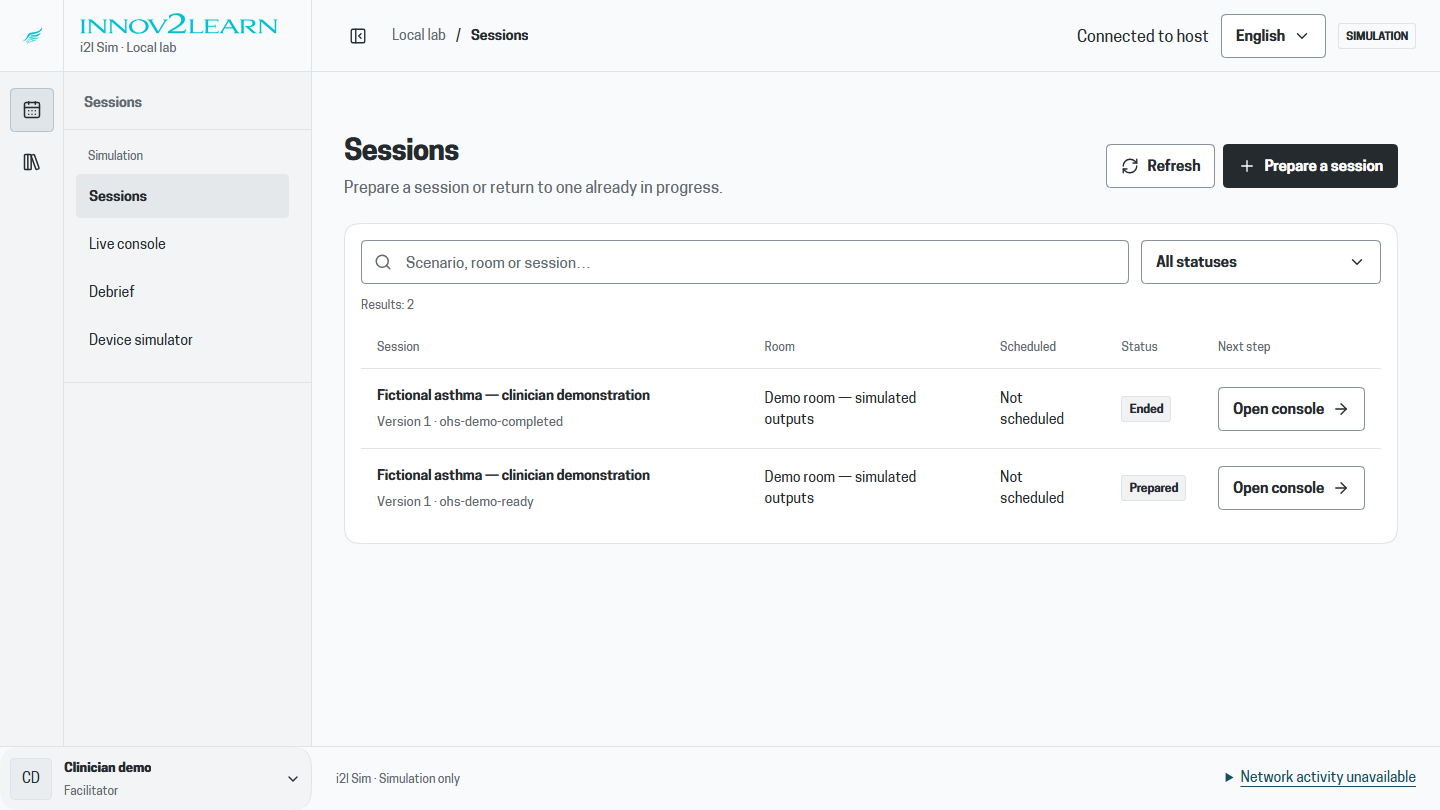
Prepare the scenario, configure the room, explicitly start the session and debrief with its saved history. Keep the teaching decisions in your hands.
Start with a Word document, Markdown file or pasted text. A configured AI provider proposes patient states and learning outcomes for your review. PDF results depend on the document.
Review the source, correct the details, then approve a scenario version before it runs.
A 29-year-old with known asthma arrives breathless and hypoxic on room air.
Review the extracted patient journey. Adjust states, set the expected actions and choose what happens when learners respond, wait or change course.
Source-backed fields and AI suggestions stay distinguishable until you approve them.
Create a prepared session, then start it explicitly from the console. Guide the patient journey, route configured outputs and follow learner activity as the story unfolds.
Pause a session, hold a state or take manual control whenever the teaching moment calls for it.
Try the interactive previewFollow the path learners took through the scenario. Bring together recorded actions, patient observations and flagged moments to guide a focused debrief.
Recording and transcription add context when configured and consented. The facilitator reviews the material before using it in a debrief.
Baseline observations established
Patient enters the responding state
Reassessment becomes the teaching focus
Every lab has its own setup. Keep your scenario focused on the patient, and map its outputs to the screens, speakers and interfaces you use.
Talk through your setupPair browser-based displays and actor views with the session. Give each person the information their role needs.
Define channels such as patient voice and bedside monitor once. Each room routes them to its own equipment.
The runtime, database and interface live on your machine. Cloud AI is used when your chosen import or voice provider requires it.
Device connectivity depends on the interface or adapter configured for your equipment.
Describe a useful extension to your coding agent. The plugin-creation skill guides it through the public interfaces, lifecycle tests and a package you can review.
“Connect our monitor. Here are three messages it sends.”
The plugin-creation skill guides your agent through creating the mapping, testing the sample messages and configuring your room’s routes.
Build and test in a development profile. Review before installing in your lab.
Turn sample messages into a tested mapping.
Build a custom panel, interface or workflow with the SDK and testkits.
Translate a local score table into tested rules for clinical review.
Describe the room. Configure its outputs and routes.
The developer guide includes the plugin-creation skill, a fictional example and the review and packaging workflow.
Get the plugin-creation skill Private source repository · no public npm release assumedThe plugin workflow makes requirements, permissions and compatibility visible. Review a package, install it, configure it and choose when to activate it.
Read the plugin guideTake the guided route through a fictional clinical scenario, or head straight to the instructions you need.
Send an overview to a colleagueSimulation educators, clinical facilitators and lab teams who prepare scenarios, run teaching sessions and lead debriefs. The clinician demo uses fictional patient data for education.
Explore a prepared fictional scenario, create a session, explicitly start it in the console and review its debrief. Follow the linked quickstart for the guided route. The animated example at the top of this page is illustrative; the clinician demo is the separate working application.
Word and text-based import support source review and human approval. PDF extraction depends on the document. Equipment needs a compatible, configured interface or mapping; there is no blanket hardware-compatibility claim.
The application, session runtime and database can run locally. Paired devices need access to the lab network. Optional cloud AI tasks require the relevant provider and an internet connection. The hosted demonstration needs internet access.
The tested MVP scope covers Windows with Chrome and Linux. macOS and actual Safari / iPad checks remain open. Clinical validation and real-device verification are separate from these software checks.
The repository is currently private. The Apache SDK and plugin skill are available as downloads; the private application and general npm distribution have not been released. The developer guide explains the available plugin skill and artifacts without assuming a public npm package.
See the workflow with a fictional patient scenario.
Then bring the questions that matter to your lab.